Adding known IDs
When a host or container dies, monitoring can stop sending its data to Grafana, leading to resources quietly disappearing from panels. To prevent this, the Host Overview panel allows adding known resource IDs: resources with these IDs will be displayed even if there is no data for them.
Step 1: Add known IDs
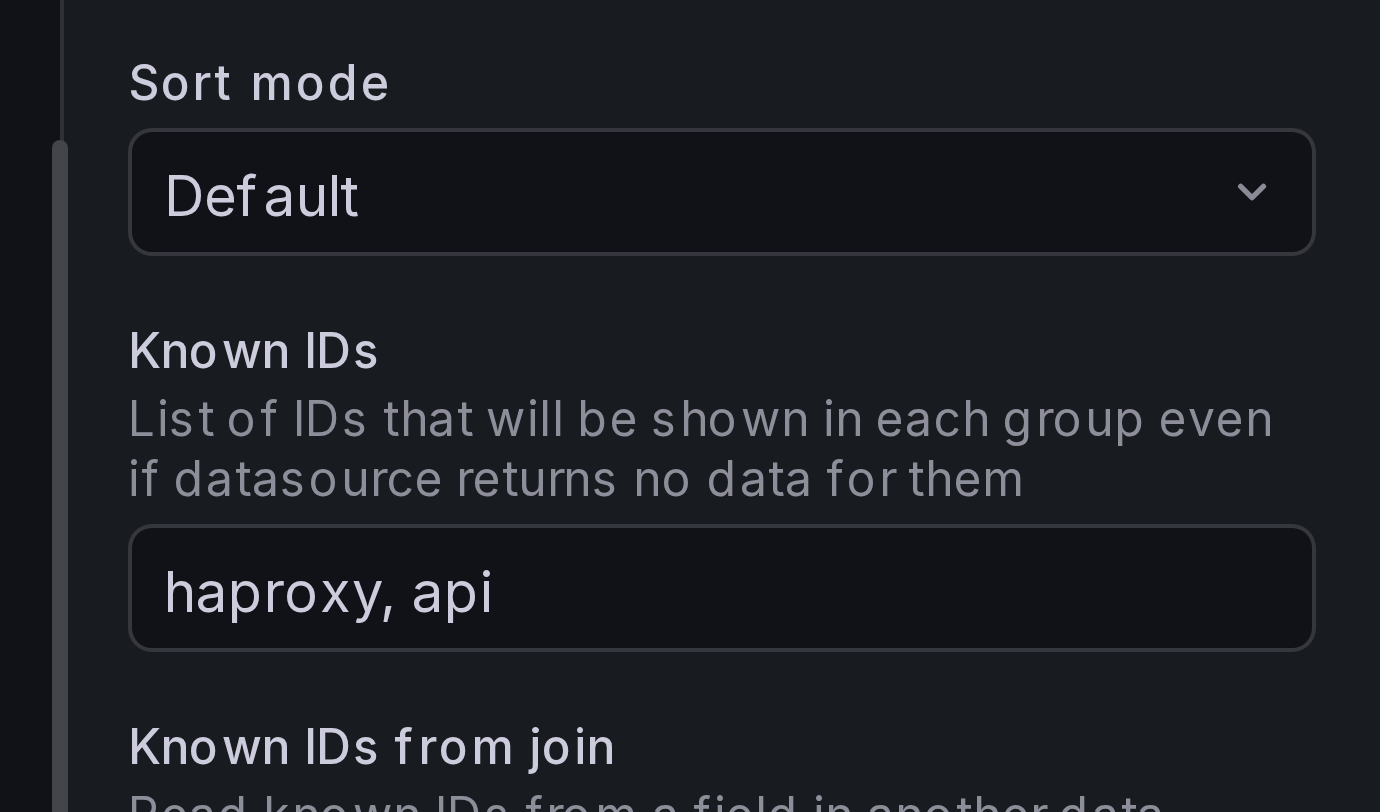
Under Resource > Known IDs, add a comma-separated list of container names
that should always be present on the panel. For example, we'll add haproxy
and api containers:
Step 2: Adjust value mappings to highlight missing resources
When data for a known resource is missing, all its field values are null. By default, the panel uses the base threshold color for this resource's cell and displays "unknown" as the field value. To make missing resources stand out, add a value mapping for the status field.
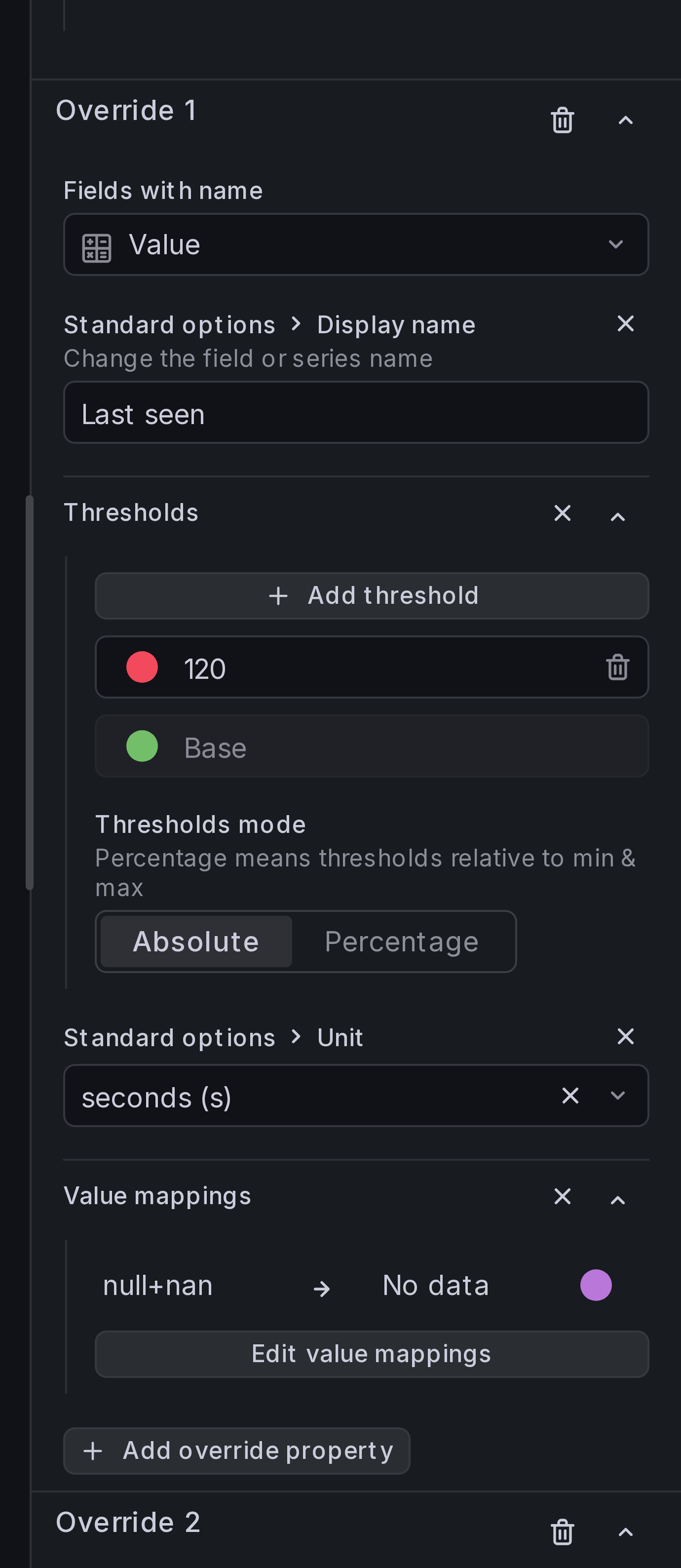
Add a field override for the Value field (our status field). Under
Value mappings, add a Special mapping for Null + NaN that maps to
"No data" with a distinct color (e.g. purple):
Result
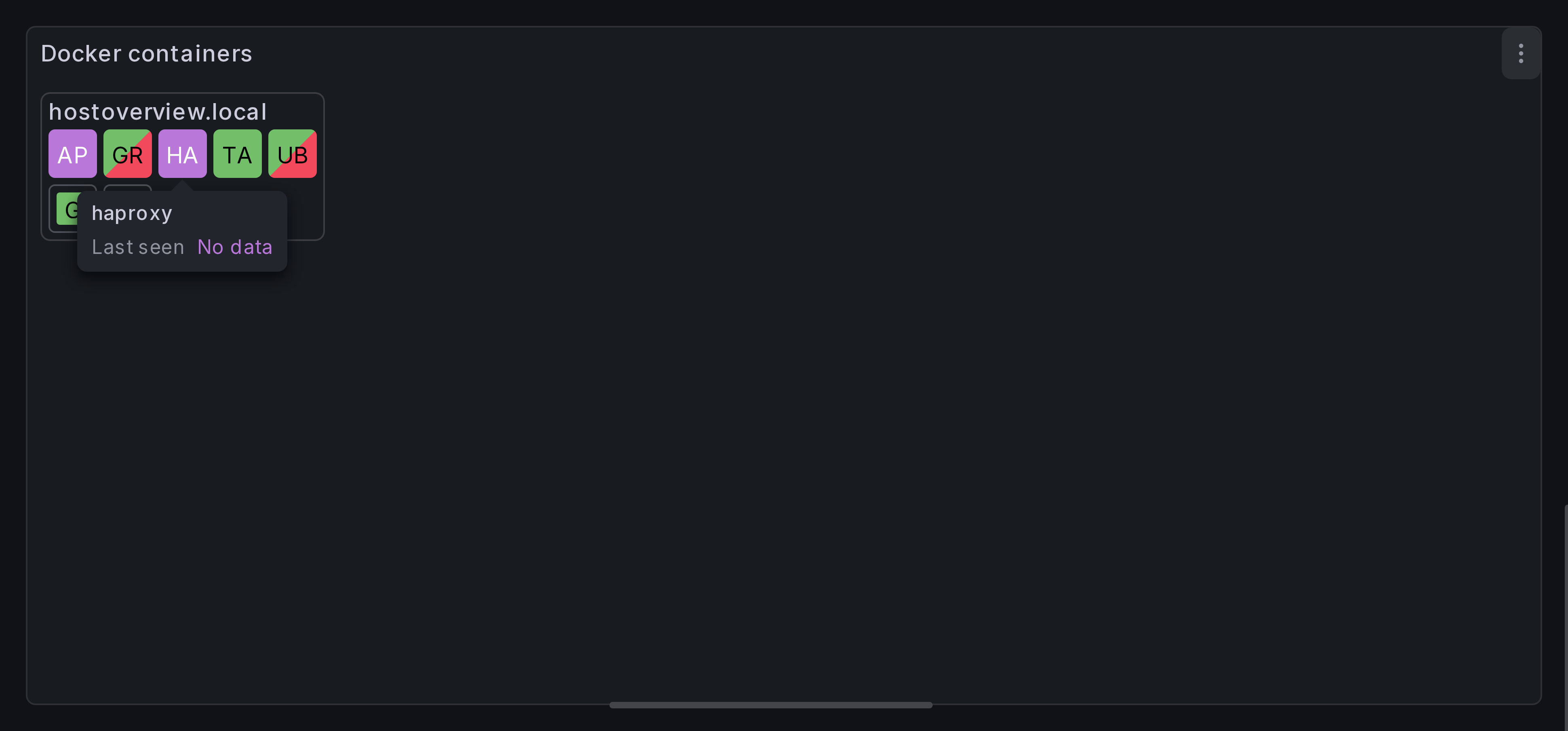
You should now see cells for haproxy and api in every host group, even when
no data is returned for them. Missing containers are colored purple and labeled
"No data".
Other ways to provide known IDs
Group-level known IDs
Each group has its own Known IDs field in its settings. Unlike panel-level known IDs (which add resources), group-level known IDs add groups with the listed values — ensuring that a group box appears even when the data source returns no rows with that group key value.
Known IDs from join
Instead of listing IDs manually, you can read them from a field in another data frame. Configure a Known IDs from join with:
- Foreign Frame — the data frame containing the list of expected IDs.
- Foreign Field — the field with the ID values.
- Keys — key pairs to filter the foreign frame by group values.
This is available at both the panel level (under Resource) and per-group level (in group settings).