Working with long resource names
When the field driving cell text is long — container names with a common prefix, fully-qualified hostnames, build job IDs — cell text gets cut off in "Cell with text" display mode:
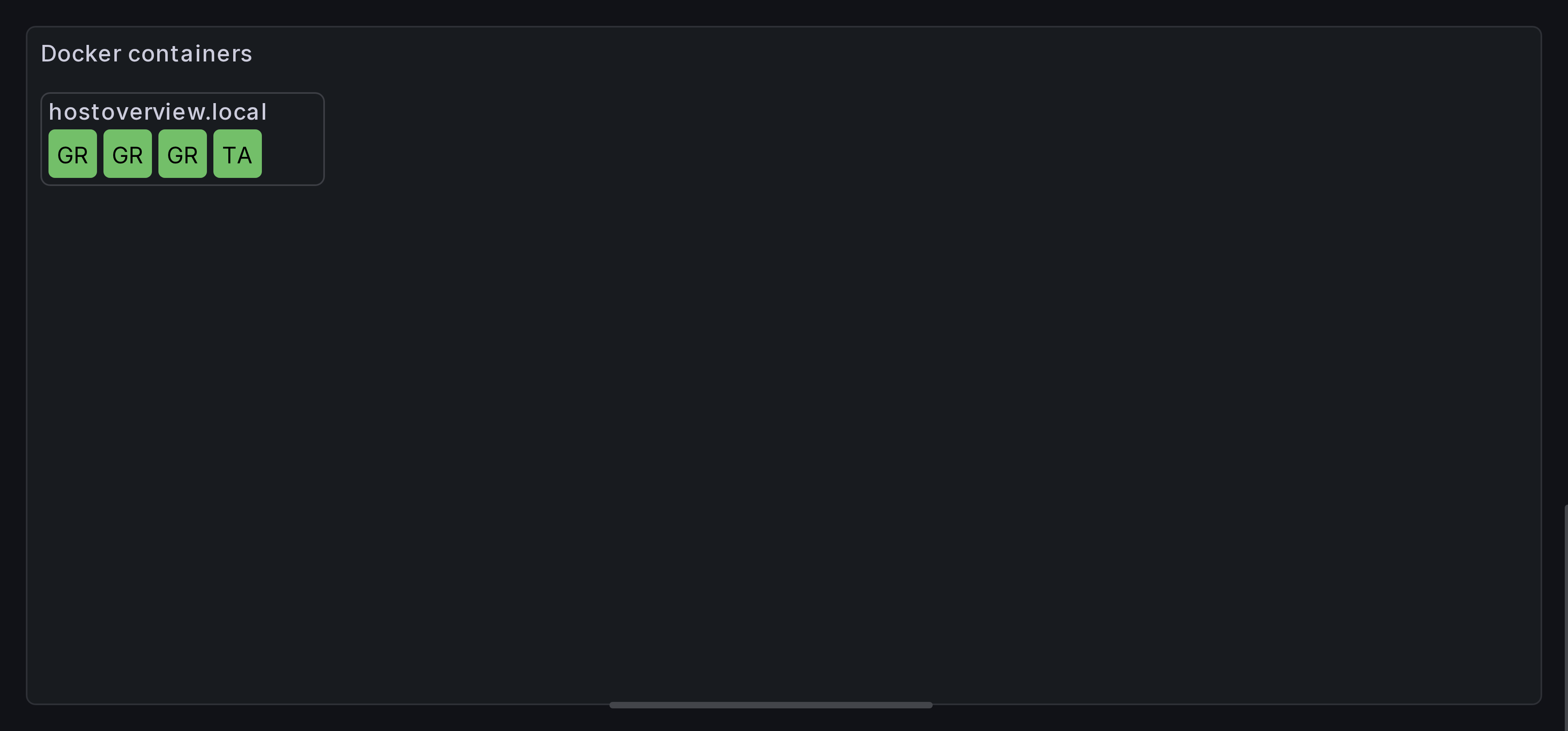
You have two complementary approaches:
- Shorten the text with a transformation — keeps cells compact and drops the noise so the part that distinguishes each cell is what's visible.
- Resize the cell to fit — shows the full text without changing it.
The two compose. Stripping a common prefix often gets you most of the way; auto-fit handles whatever variance remains.
Approach 1: Strip a common prefix with a transformation
Often the noise in a resource name is a shared prefix. Grafana's built-in Extract fields transformation can pull the meaningful portion into a new field, which you then use as the cell text.
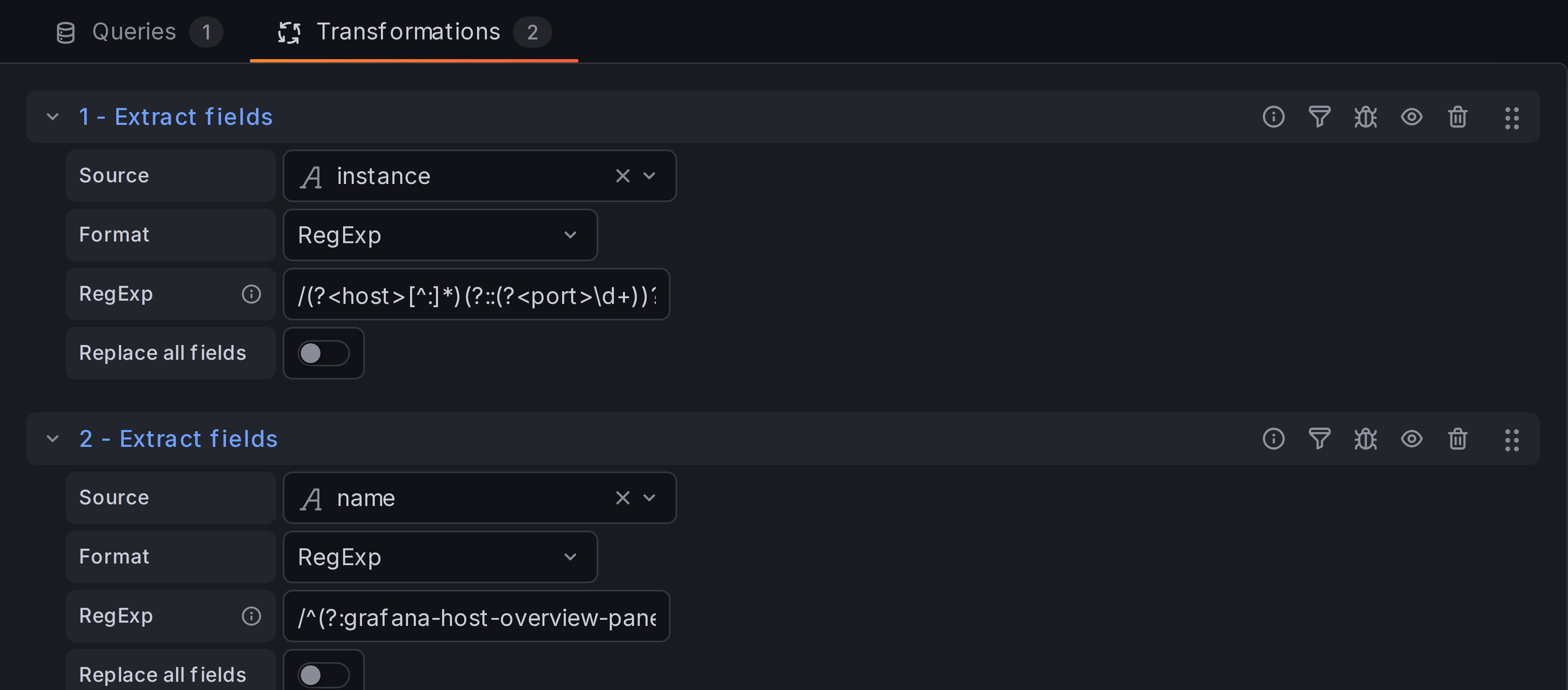
Switch to the Transform data tab and add Extract fields:
- Source — the field with the long name (e.g.
name). - Format —
RegExp. - Regular expression —
/(?:prefix-|other-prefix-)?(?<cellTitle>.*)/
Replace prefix- and other-prefix- with the actual prefixes in your
data. The optional non-capturing group (?:...)? matches the prefix when
it's present and silently skips it when it isn't, so the same regex works
for every row. The greedy named capture (?<cellTitle>.*) then takes
whatever remains.
Back in the panel options, set Resource content > Cell text field
to the new cellTitle field. Each cell now starts with the part of the
name that distinguishes it, instead of the shared prefix:
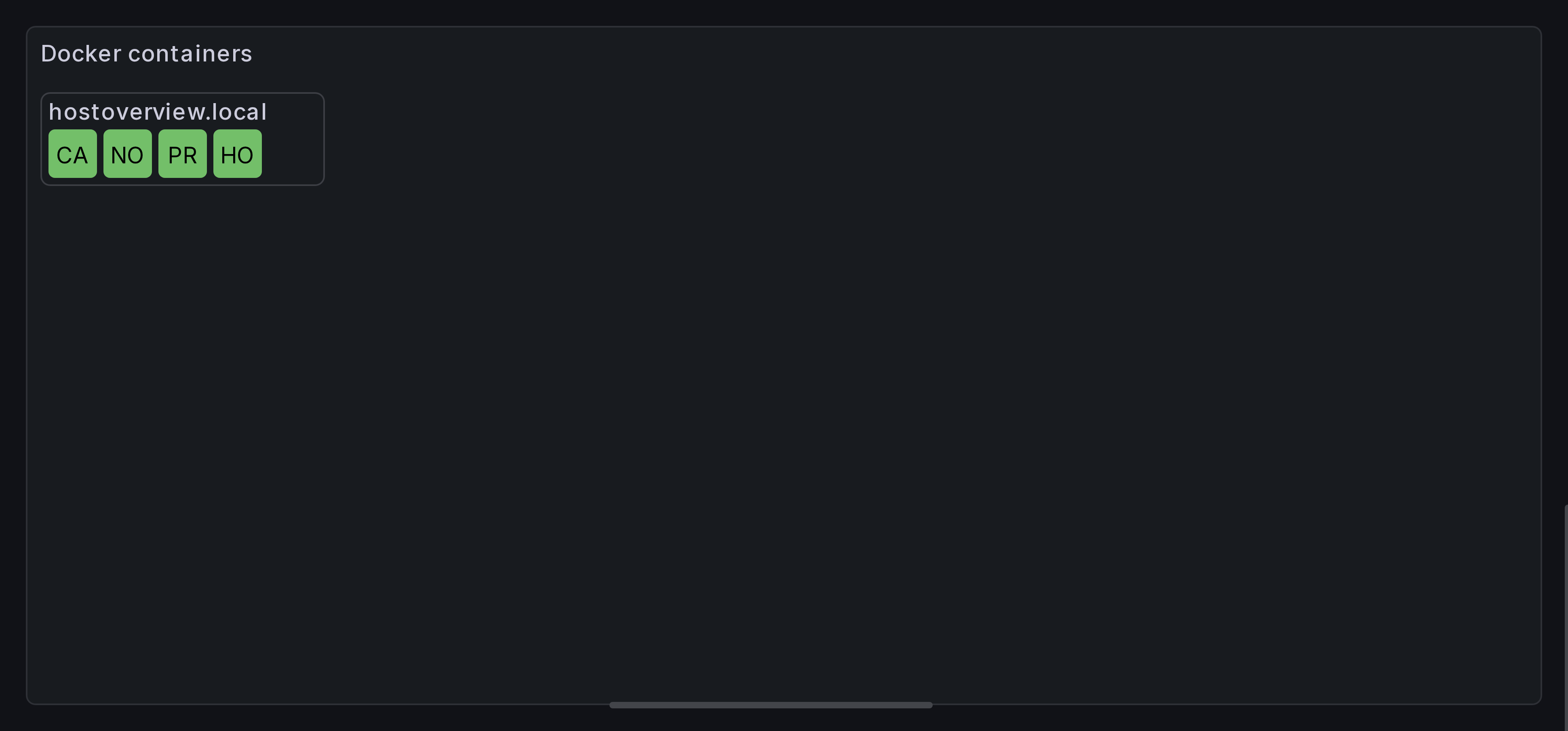
The cells in this example are still small enough to truncate the labels, but you can now tell them apart at a glance — and full text is always visible in the tooltip. If you need the full label on the cell as well, combine this with the auto-fit approach below.
Tip
The transformation produces a regular field, so the cleaned-up value is also available for sorting, tooltips, joins, and any other place that takes a field name.
Approach 2: Resize cells to fit text
If you'd rather see the full label, change the cell size. The Resource content > Cell size control accepts width and height independently, with three modes selected by the icon button next to the inputs:
- Free (unlock icon) — width and height edited independently.
- Locked (lock icon) — height drives both dimensions; the cell stays square.
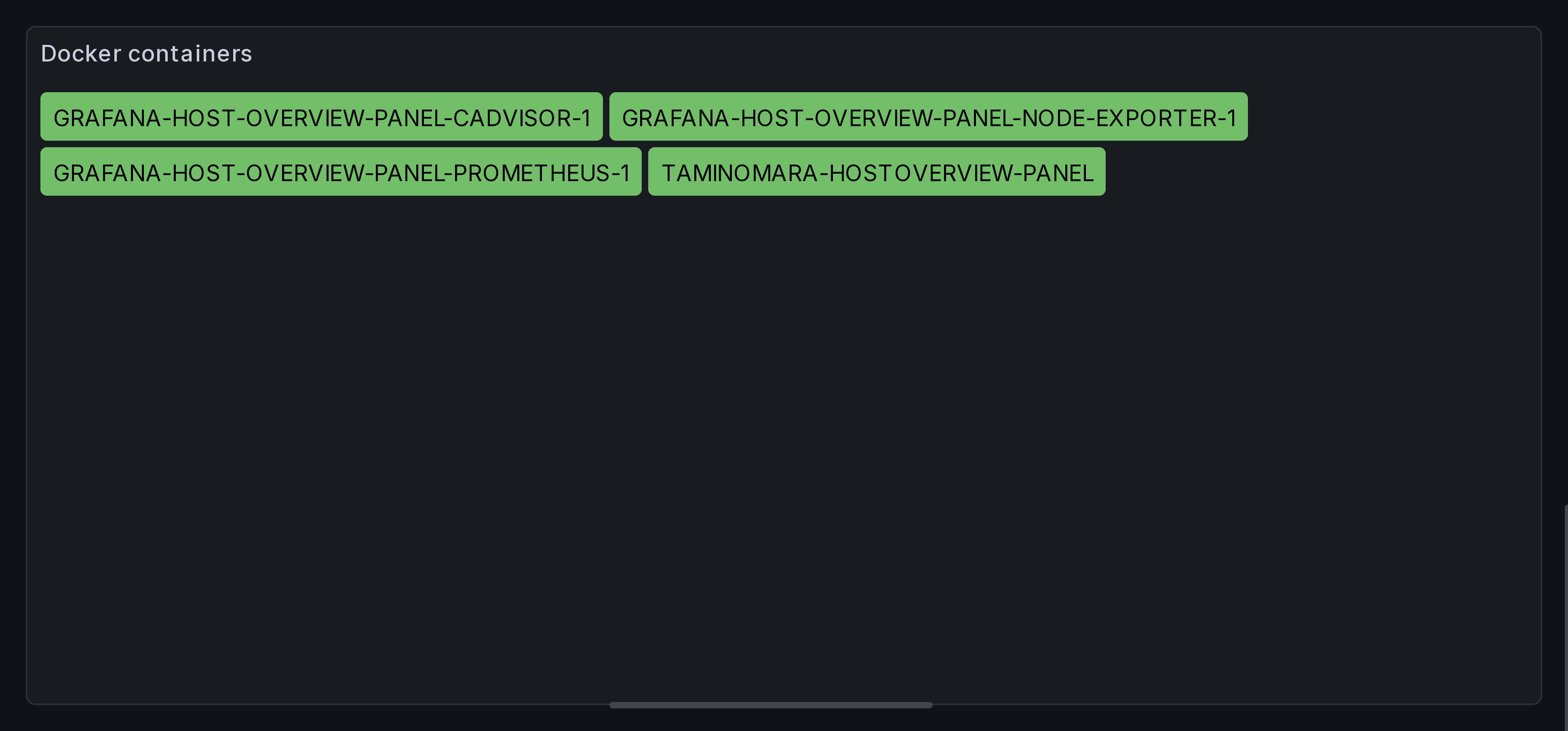
- Auto-fit (arrows icon, "Cell with text" only) — width grows to fit the cell's text. Width never shrinks below the cell height, so short labels still look like cells, not slivers.
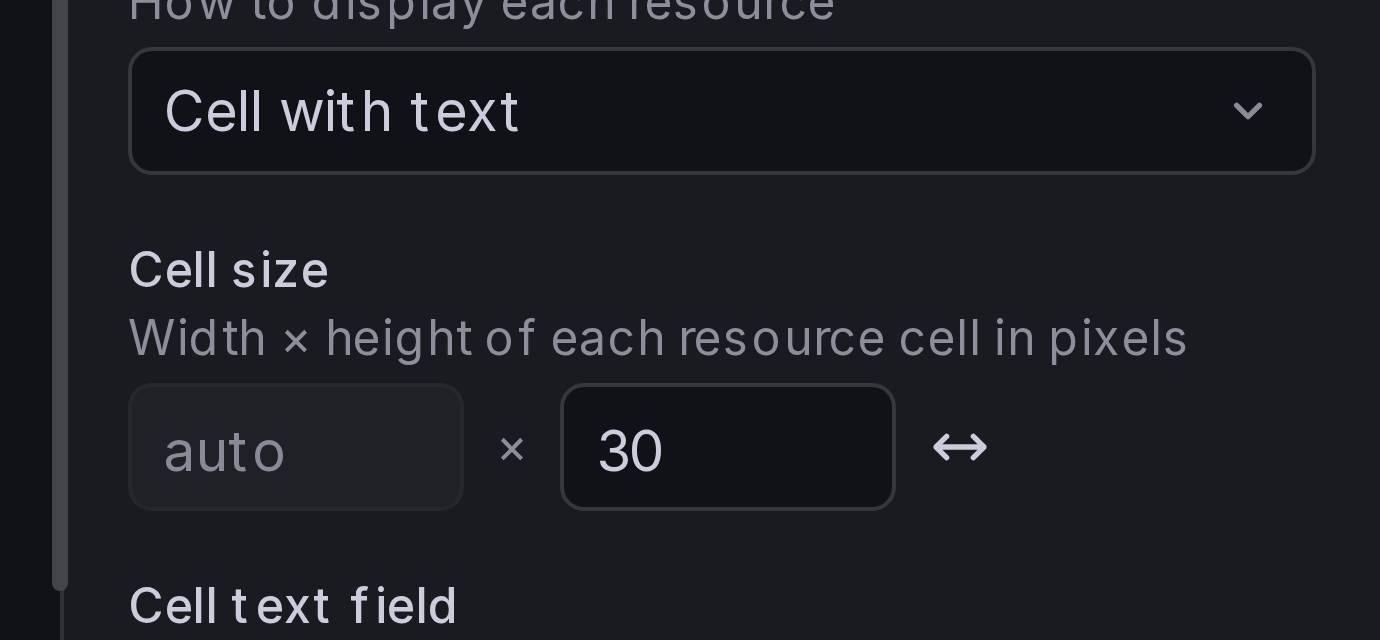
In auto-fit mode the cell width shows as auto and only the height is
editable.
Tip
Auto-fit works best with the Flow layout (the default). Other layouts assume a fixed cell size per row, so they'll honor the minimum width but won't gain you anything from the variable widths.
Tip
Cell text is rendered upper-case by default, which makes the letters
noticeably wider. If you're trying to squeeze more characters into a
fixed cell, turn off Resource content > Capitalize cell text.
Lowercase glyphs are narrower on average — most visibly the i,
l, and t — so the same text takes up less room.